
All work in is accomplished by pipelines, and these pipelines are created, configured, and managed through the main user interface (UI). To open the UI and create your first pipeline:Documentation Index
Fetch the complete documentation index at: https://docs.maia.ai/llms.txt
Use this file to discover all available pages before exploring further.
- In the left navigation, click .
- Select your project.
- Select your branch. will open.
- Get started by creating a pipeline. Click the Orchestration pipeline tile, which is the recommended first step, or the Transformation pipeline tile. For more information, read Pipelines.
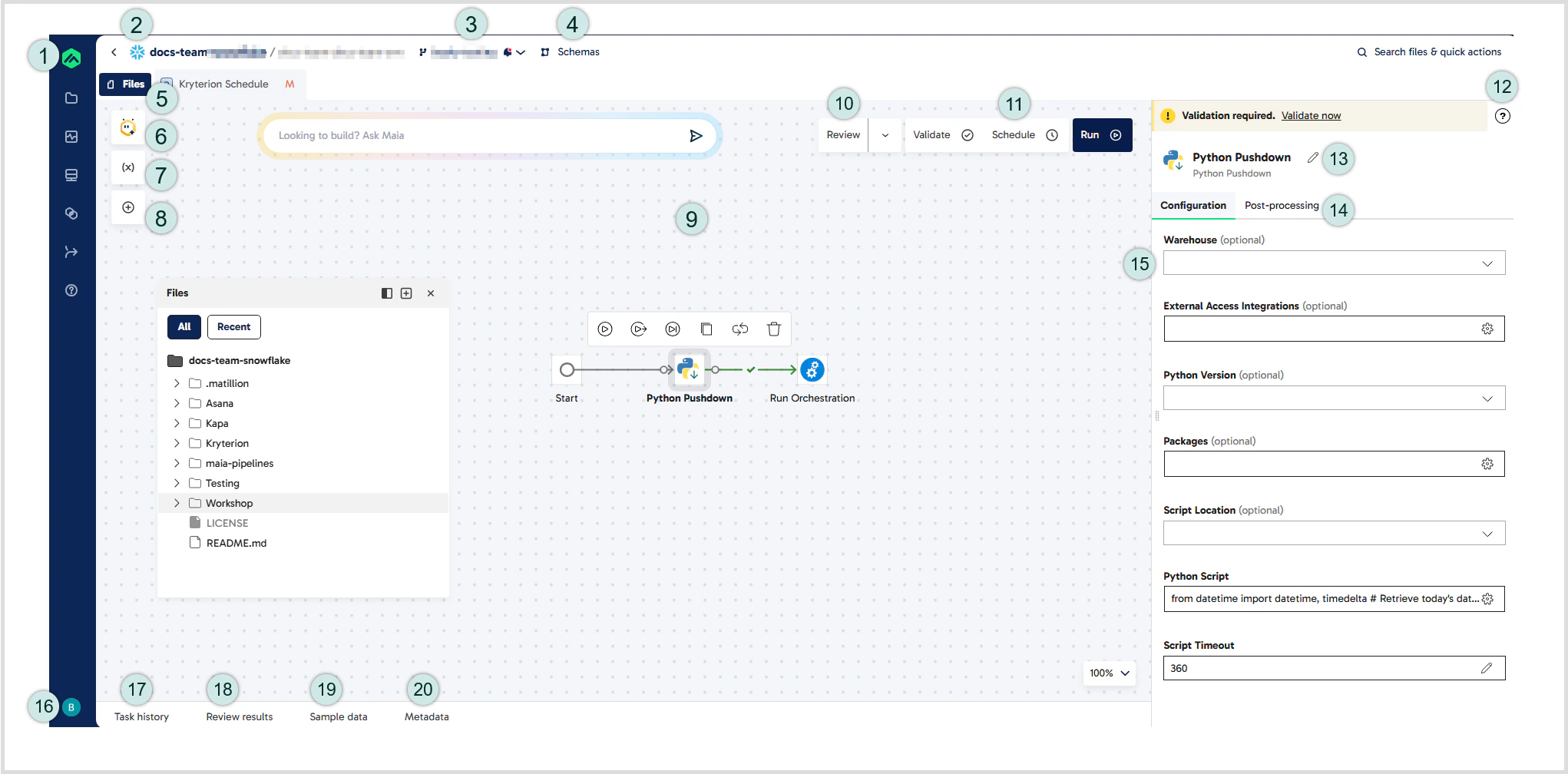
- icon: Click this icon to return to the homepage.
- Project bar: Displays an icon that indicates the data warehouse being used in the current project, followed by the project name, the current environment, and the current branch. Click the project name to go to the project details screen.
- Branch: This shows the name of your current branch. Click the branch name to open a drop-down menu with available Git actions features.
- Schemas: Click here to open the Schemas panel, which displays the tables and views within your environment’s default database. Use the drop-down at the top of the panel to view the tables and views in a different database. The Schemas panel is displayed in the same way as the Files panel. When you have a transformation pipeline open, you can click Inspect data next to the name of a table or view to open the Warehouse data dialog.
- Files: Click here to open the Files panel, which is shown on the canvas in this example. The Files panel lists all folders and pipelines in your current branch and allows you to create new pipelines.
- Maia: Click this icon to chat with Maia, your agentic data team.
- Manage variables: Click this icon to create and manage two types of variable: pipeline variables and project variables. To learn more about variables in , read Variables.
- Add component: Click this icon to open the Add component dialog, which lists all components that can be used in the pipeline. For more details, read Add components to a pipeline.
- Canvas: The canvas is the area where components are assembled into pipelines.
- Review: Click Review to check whether your pipeline meets a set of predefined rules. For more information, read Reviewing pipeline quality.
- Pipeline actions: Use these buttons to validate, schedule, and run the open pipeline. For more details about scheduling pipelines, read Schedules.
- Help button: When you select a component, click the question mark icon to open the component documentation in a new browser tab.
- Properties: When you select a component, the Properties panel displays the component’s configurable properties. For more details, read Component properties.
- Component name: Click the pencil icon to edit the component name that appears on the canvas.
- Post-processing: Click this tab to update user-defined pipeline variables and project variables via component execution. For more information, read Post-processing.
- Profile & Account icon: Click here to view and manage your account details, switch to a different account, or log out of your user account.
- Task history: When a pipeline runs, the Task history tab displays messages relating to the success or failure of the pipeline.
- Review results: After clicking the Review button on the canvas, click this tab to display the results of the pipeline quality review.
- Sample data: The Sample data tab displays data from validated transformation components.
- Metadata: Click the Metadata tab to view the metadata about the output of a component.
Files panel
The Files panel lists every pipeline you have created on your current branch. Icons identify the type of pipeline: a blueO for orchestration, green T for transformation. Pipelines can be organized into folders within the panel. Click Files in the top-left of the canvas to open this panel. If you have any files open, the Files button appears to the left of the tabs. You can also search for files using the search bar in this panel.
Click and drag the header of the Files panel to move it around the canvas, or click the Dock to left icon to dock it on the left of the canvas. If you use this option to dock the Files panel, the Schemas panel will also be docked. To undock the panel, click the icon again.
In this panel, you can add, delete, or edit pipelines. Read Pipelines for a full description of how to manage pipelines and use them in data workflows.
Our Pipelines tutorial is a step-by-step walkthrough that explains how to create an orchestration pipeline and a transformation pipeline using sample data provided by Matillion. This guide may be useful if you are new to Designer and want to practice creating pipelines and configuring components.
Uncommitted change indicators
The Files panel displays indicators next to the name of a pipeline if it has uncommitted changes:- N – The pipeline is new.
- M – The pipeline has been modified.
- R – The pipeline has been renamed but no other changes have been made.
Deleted pipelines won’t be displayed in the Files panel but will be listed in the Changes table in the Commit dialog.
The pipeline canvas
The canvas is the main area of the UI, which displays the details of a pipeline. A pipeline is a collection of connected components, displayed as labelled icons on the canvas. For details about building pipelines from components, read Components overview. Any change you make to a pipeline on the canvas, such as adding, deleting or moving a component, is saved automatically. However, you need to commit and merge the changes before you can publish the pipeline for use in schedules. You can open multiple pipelines at once. Each is shown as a separate tab at the top of the canvas, and you can click a tab to quickly switch to viewing a different pipeline. You can reorder your tabs by selecting and dragging a tab to your preferred order. Clicking the X on a tab will close that particular pipeline. In the bottom-right, there are a number of tools in the control box that let you change how you view the canvas. These tools are useful if you have a large pipeline that doesn’t fit in the default canvas view:- Click the - button in the zoom toolbar to zoom in, or + to zoom out, in increments of 25%.
- Click the Fit all button to resize the canvas view, and show all components in the pipeline.
- Scroll the entire canvas in any direction. Click on an empty area of the canvas and drag up, down, left, or right.
- The Enable snap to grid feature is disabled by default. While enabled, components will always be positioned within the canvas grid. While disabled, components can be positioned freely.
- Drag the dividing lines between the canvas and the surrounding panels, to reduce the size of those panels and allow more room for the canvas.
Click the “i” button in the bottom-right to open overview on the documentation website for guidance and support.
Canvas context menu
Right-click a blank place on the canvas to reveal the context menu, which lets you perform the following actions.| Action | Description |
|---|---|
| Validate pipeline | Check that your pipeline is configured correctly without performing any data manipulation. |
| Run pipeline | Run the pipeline. |
| Add note | Add a text note to the canvas to document your pipeline. |
| Undo | Undo the last action performed. Actions that can be undone include deleting components, moving components, adding new components to the canvas, and connecting or disconnecting components. |
| Redo | Reverse the last Undo command, reverting whatever change was undone. |
| Paste | Paste a copied component at the location you have right-clicked. The copied component is identical to the original, including all configured properties. To perform this action, you must have first used the Copy action on a component. |
Canvas notes
You can add any number of notes to a pipeline canvas. These have no effect on the design or operation of the pipeline, but can be used to provide information for other users, such as the purpose of the pipeline. Notes are text boxes with a solid outline, which appear behind components on the canvas. There are two types of notes:- Text note: A freeform text box you write manually. To add a text note, right-click on the canvas, and select Add note from the context menu.
- note: An AI-generated note about specific components, created by . To add a note, right-click a component (or multiple components) and select Add note using Maia. For more details, read Pipeline notes.
-
Edit the note text: Click in the center of the text box to enter and edit the content of the note. Text is aligned to the top-left of the box. You can format the text using common Markdown formatting. See this Markdown reference for details.
To write text on multiple lines, insert two line breaks (press
Entertwice) where you want a blank line to appear between paragraphs. - Resize the note: Click and drag the border of the text box.
- Reposition the note on the canvas: Click and hold the ::::: in the note header, then drag to move the note.
- Change the color of the note: Click the note, then click the Color icon in the action bar and select a color.
- Copy the note: Click the note, then click the Copy icon in the action bar.
- Delete the note: Click the note, then click the Delete icon in the action bar.
Task history
Tasks are created whenever an orchestration or transformation operation is performed. This includes pipelines run from the canvas, tasks created by the scheduler, and the results of validated pipeline operations. The Task history tab at the bottom of the UI shows a list of all tasks completed, running, queued, cancelled, or failed. These tasks can be expanded to show sub tasks. Each row of the task history shows the following basic information about the task:- Status icon:
- Red X icon: The task has failed to complete.
- Green tick: The task has completed successfully.
- Rotating disc: The task is currently in progress.
- Hourglass: The task has been queued, and will execute when a free thread is available.
- Task: The type of task, for example “Validate” or “Run”.
- Environment: The environment that the task has run in.
- Pipeline: The name of the pipeline and the selected component.
- Queued: The time of day (hour:minute:second) that the task was queued for execution. This is not the same as the time the task execution started.
- Completed: The time of day (hour:minute:second) that the task execution completed, either successfully or unsuccessfully.
To force a running pipeline to be cancelled, read Cancelling a running pipeline in Managing Pipelines for more information.
Detailed task history
To view further details about any task, click the corresponding row in the Task history tab at the bottom of the UI. This will open a tab on the pipeline canvas. In the top right, you can see when the task started, when it completed, and how long it took to finish. While a task is running, this tab updates to show the progress of each step in the task. After the task is completed, this tab displays full details about each step in the task. You can expand some rows in the task to view more details about subtasks. The task history shows:- Pipeline: The name of the pipeline.
- Component: The name of each component in the task.
- Started: The time of day (hour:minute:second) that the task execution began. This time is shown for the entire task, not for each individual component.
- Duration & Completed: The time, in seconds, that the task took to execute, and the time of day (hour:minute:second) at which the task completed. This time is shown for the entire task, not for each individual component.
- Row Count: Where applicable, the number of rows of data processed by the task.
- Message: A message returned by each component when the task runs. This will indicate the success of the task, or give error information if the task failed.
Logging
To view detailed log information about a task, click the corresponding row in the Task history tab at the bottom of the UI. When the Task history tab opens on the pipeline canvas, click Logging. The Logging tab shows the progress of the selected task step by step, and includes messages relevant to each step of the process. The log updates in real time as the task is running. The information shown here includes SQL code generated as part of the task, details of warehouses and s involved in the task, as well as extremely detailed information that can be used to debug any pipeline issues.Command palette
offers a command palette to provide quick access to commands in .| Mac command | Windows command | Action |
|---|---|---|
cmd + k | ctrl + k | Open the Search files dialog. |
cmd + shift + k | - | Open the canvas command palette, where you can perform actions including Run pipeline, Validate pipeline, and Add component. |
cmd + shift + enter | ctrl + shift + enter | Validate the current pipeline. |
cmd + enter | ctrl + enter | Run the current pipeline. |
cmd + shift + e | ctrl + shift + e | Open the Files panel. |