

Video: How to Install the AWS ECS/Fargate Hybrid Runner for Maia
Video: How to Install the AWS ECS/Fargate Hybrid Runner for Maia
Prerequisites
To get started, you’ll need:- A Maia account. To register, read Registration.
- Access to AWS, with the permissions to create a stack on a billable account. You may need an administrator from your organization to either give access or perform this process with you.
- Permissions to provision cloud resources in the AWS environment that the source database is running in.
- An IAM role that has suitable permissions for Maia. If you’re using the same IAM role, you might need to add
cloudformation.amazonaws.comto the Service section in the Trust Relationship section of your IAM role to allow the role to work with the ECS service. An example trusted entity can be found below. Read AWS IAM roles for more information about creating IAM roles.
Created resources
This template will create the following resources in your AWS account:- ECS task definition.
- ECS Fargate cluster.
- CloudWatch log group.
- An entry in AWS Secrets Manager.
- IAM roles with permissions for the following:
- Task roles to your ECS, EC2, and Secrets Manager.
- Task execution roles to pull from ECR Public repositories.
Each Maia runner requires its own separate ECS cluster. Deploying this template for a new Maia runner creates a new, dedicated cluster—don’t reuse an existing cluster from another Maia runner.
Visualization
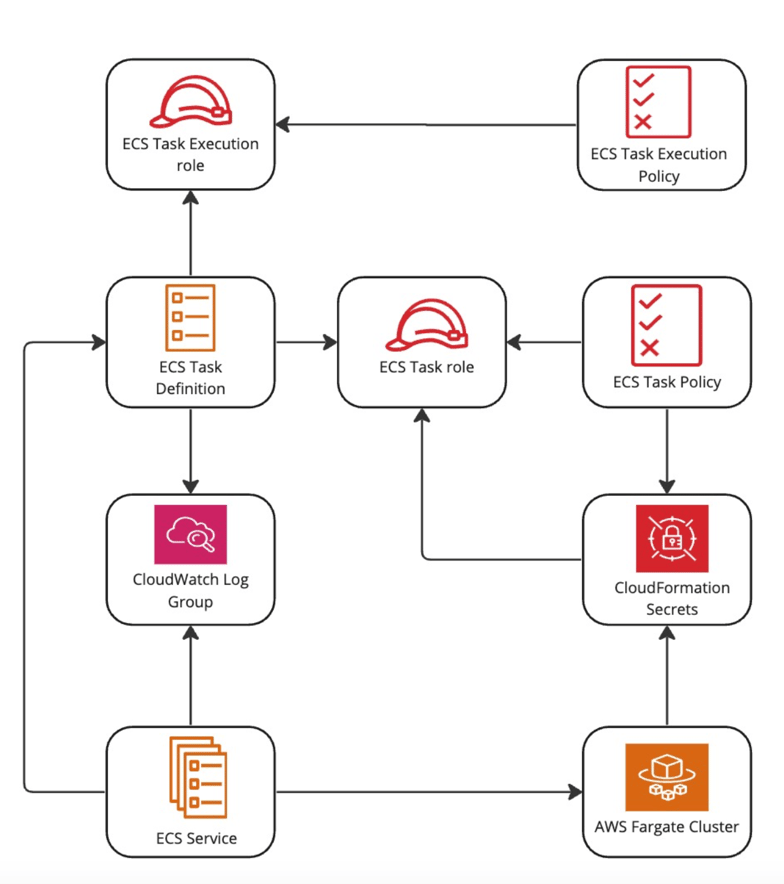
Using the CloudFormation link
- Create a Maia runner in Maia.
-
On the Runner details page, note the Credentials:
client_idandclient secret. - On the Deployment tab of the Runner details page, click the Launch button. This will launch the CloudFormation stack in the AWS Console with pre-filled values for most parameters.
-
Complete the remaining parameters as follows:
- Stack name: An arbitrary name given to the created stack. Must be unique. This will be pre-filled, but if you are reinstalling a Maia runner you will need to change the stack name. Consider increasing the number that is added to the end of the stack name.
- OAuth Client ID: Copy the retrieved
client_idfrom the Runner details page. - OAuth Client Secret: Copy the retrieved
client_secretfrom the Runner details page. - VPC ID: Select the ID of an existing VPC. For more information, read VPCs.
- VPC Subnet IDs: Select at least one VPC subnet to use.
- Click Create stack.