> ## Documentation Index
> Fetch the complete documentation index at: https://docs.maia.ai/llms.txt
> Use this file to discover all available pages before exploring further.
# Test the connection
This document covers step four of the [Single sign-on (SSO) setup](/docs/administration/single-sign-on) process, and shouldn't be completed independently.
Once the configuration has been completed by {maia}, we will provide you with a **Relay State URL**. Before testing, add this to your application as noted in the original application [setup process](/docs/administration/single-sign-on).
To test the connection follow these steps:
1. Visit [https://sso-check.matillion.com](https://sso-check.matillion.com), and click **Log in**.
2. Enter your email address, and click **Log In**.
3. If the general configuration is correct, you'll see a page like this:
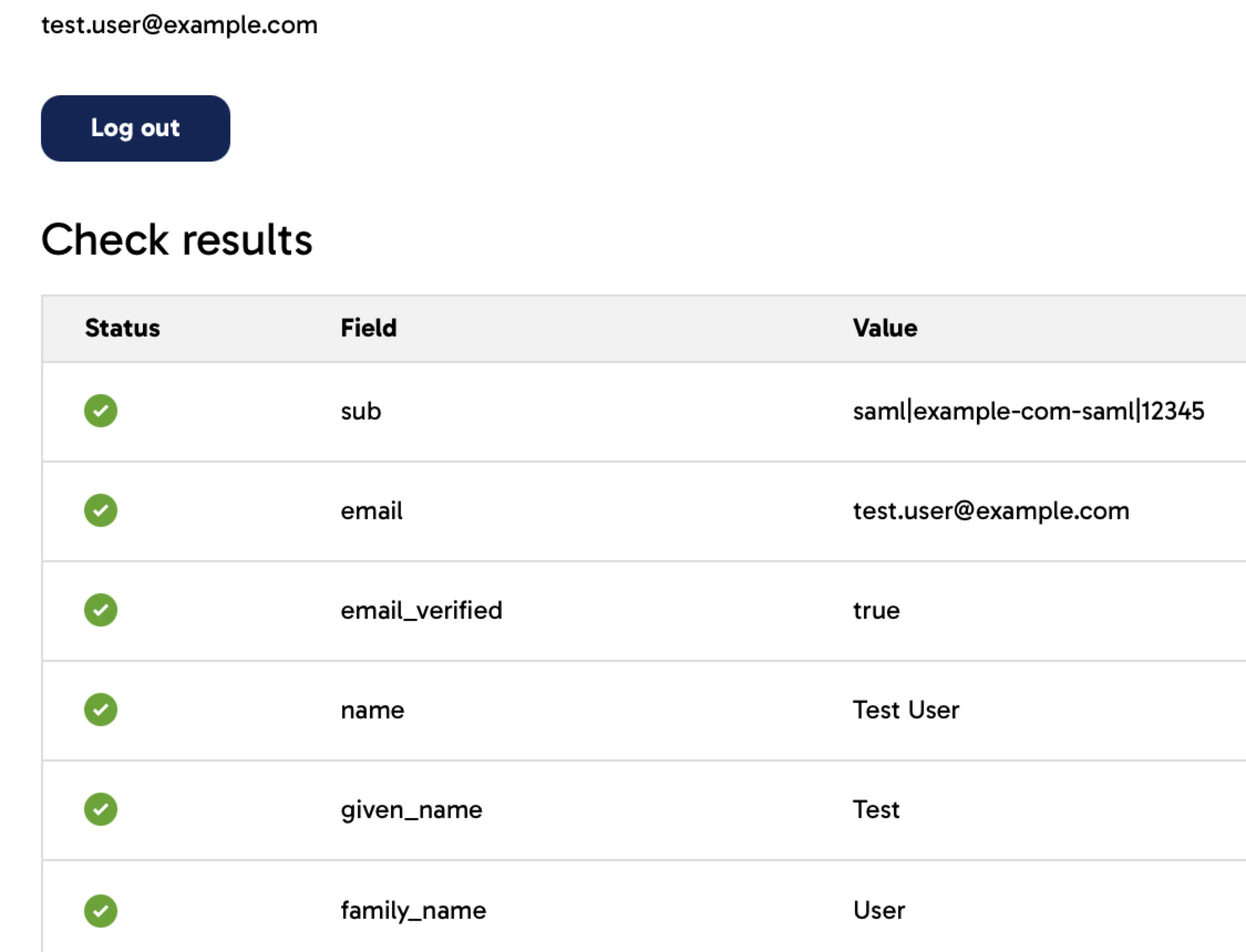 * If all six checkboxes on the left are green, continue to step five of the [main process](/docs/administration/single-sign-on).
* If errors appear in the **Value** column, update the attributes or claims configured in your application to resolve them, then log out and back in after each change to re-test.
4. If the screen above doesn't appear and you instead encounter an error, there is likely a broader issue with your application's configuration. Use the error message and your identity provider logs to identify the cause. After making any changes, log out and back in to re-test.
If you can't determine the cause after investigation, please include a screenshot of the error and the error URL in your [support ticket](https://support.matillion.com) so a member of the team can attempt to assist you.
* If all six checkboxes on the left are green, continue to step five of the [main process](/docs/administration/single-sign-on).
* If errors appear in the **Value** column, update the attributes or claims configured in your application to resolve them, then log out and back in after each change to re-test.
4. If the screen above doesn't appear and you instead encounter an error, there is likely a broader issue with your application's configuration. Use the error message and your identity provider logs to identify the cause. After making any changes, log out and back in to re-test.
If you can't determine the cause after investigation, please include a screenshot of the error and the error URL in your [support ticket](https://support.matillion.com) so a member of the team can attempt to assist you.